Introduction to Azure Active Directory Part 3: MFA Primer

Azure MFA is a very complex topic, but I’m going to attempt to cover it in one blog posting. Below is a brain dump of all the thing to think about when it comes to MFA, but I’m sure I’m missing something.

  • MFA Registration
  • Step-up authentication scenarios: These include Identity Protection, Privileged Identity Management, and I believe Authentication context.
  • Conditional Access
  • Secure defaults
  • Understanding when you are and are not prompted
  • MFA methods

Basic Terminology

This is for those that are new to IT or IT Security (or CyberSecurity which is the fashionable term these days). We all start somewhere. These are my definitions.

Authentication: Shorthand for authentication is AUTHN. This is the process of a digital identity proving that it is in fact that identity. For example, a user proving they are that are the user that is represented by a user account. The user typically proves this by entering a password. Keep in mind not all identities are users. There are many types of identities and different types of systems have identities. For example, Active Directory has user accounts, computer accounts, and managed service accounts.

Authorization: Shorthand for authorization is AUTHZ. This is the process of determining if an identity has permission to access a resource. This resource can be but is not limited to data and applications. Resources can be controlled by rulesets and Access Control Lists (ACLs).

Identity Provider (IDP): And IDP provides authentication services. In other words, it authenticates identities. To authenticate identities and Identity Provider maintains identities such as users.

So, what is MFA?

There are several different factors you can use when authenticating. And the source of those factors come from 3 places. Something you know, something you have, and something you are. The more of these that you use to authenticate the more secure the authentication will be. And what we mean by secure is that the IDP authenticating you has a higher confidence that it is you based on how and the number of ways that you authenticate. Keep in mind some authentication methods may use more than one authenticator. For example, if you use a smart card to login, it uses something you have (smart card), and something you know PIN. Anyways, here are some common authenticators:

Factors

Something you know

Examples: Password, PIN, answer to a security question

Pros: Easy to manage, does not require any additional hardware or software

Cons: Can be stolen or compromised

Something you have

Examples: Smart Card, FIDO 2 Key, Windows Hello for Business enabled laptop, Authenticator app

Pros: Less likely to be stolen or compromises. Usually, they require a second factor. For example, FIDO2 keys usually require a PIN of fingerprint, WHfB requires a PIN or biometric, Authenticator app requires you to unlock your phone, and so on.

Cons: More complex to manage due to the fact that there is hardware that must be distributed and maintained. Also, processes must be in place to replace lost or stolen devices.

Something you are

Examples: Fingerprint, facial recognition, and retina scan

Pros: Management is minimal since the user is the authenticator. Also, it can be used across multiple devices.

Cons: Some people have a misunderstanding that their fingerprints or other biometrics can be stolen. Some support may be required for the enrollment process.

Why use MFA?

I can’t really express how important MFA is for securing authentication. MFA dramatically increases the security of authentication. And this is because it increases the confidence that the user is actually who they report to be. And once again this is because passwords are very commonly compromised. There are just so many attacks against passwords. Some ways passwords can be compromised:

Shoulder surfing: watching a user type in their password

Password re-use: For example, a user uses the same password for all their accounts. There is a password breach with one of their accounts due to weak security of the organization. Now the password for all their accounts is compromised.

Password breach: An organization stores passwords in an in-secure way or the password for a password vault is compromised. You see a lot of red team exercises where admins use a password vault that gets compromised. I have also seen passwords sniffed from chat conversations and also from authentications that do not use encryption. Active Directory Database being dumped can be another source of passwords for attackers. Rainbow tables can be used if you have a password database to determine the password.

Brute-force attacks: Guessing every possible password until you guess one that works. A lot of IDPs have throttles and account lockouts that make this type of attack less likely to succeed.

Authentication Methods/Factors

In this blog (Introduction to Azure Active Directory Part 2: Authentication Methods – xdot509.blog), I covered most of the authentication methods/factors that can be used to perform MFA. The one I did not cover is Windows Hello for Business. This is not going to be a lesson on WHfB. I am just discussing it in relation to MFA.

With WHfB you can of course sign in with a username and password. This is of course not considered MFA. However, there are some other options. You can use PIN, facial recognition, or thumbprint. One concern is that a PIN might be similar to a password. And it is not similar. A password is a shared secret that both parties need to have to authenticate the user. So, the server and the client both must have a copy of the password or a hash of the password for authentication to work. PIN is different because it is unique to the device and only authenticated on the device, which then uses it to unlock keys that can then be used for secure authentication.

Anyways, unless you are using username and password with a WHfB machine, then you are performing MFA. This means if you have conditional access policies that require MFA, MFA will be satisfied. The mechanics of course is a little more nuanced than this.

So, there are 3 types of tokens in the scenario that I am going to cover. A Primary Refresh Token which can be used to request additional tokens (access tokens). Refresh tokens which are usually application specific. So, an RT for Outlook can request an access token for Outlook. If a user attempts to access Outlook, the system will attempt to locate an RT for Outlook. If it has an RT, it will use the RT to request an AT. If it does not have an RT, then it will use a PRT to request an AT.

When you login with WHfB using an MFA method, the PRT gets the MFA claim added to the PRT. PRT is valid for 14 days and sign-in frequency is set to 90 days. However, if the user is active the PRT will continually be refreshed. Which means that if a user authenticates with a WHfB MFA method that claim will persist in the PRT until the 90-day mark. So, people being people, they get excited about this, and not in a good way. They feel that there is some degradation of security because the MFA claim persists. But this is borderline idiotic. Because even though the MFA claim persists in the PRT, that PRT is only associated with the MFA method. For example, if I login with fingerprint on a WHfB machine that MFA claim will persist in the PRT that is associated with fingerprint login. But so, what? The user is still going to use a fingerprint to login every time and so does it really matter whether the claim gets injected every time or persist.

Now to be fair there are situations outside of WHfB MFA where it will persist as well. So, username and password on a WHfB machine is not MFA. But if after I login I get prompted for MFA while accessing an application, I know have an MFA claim that can persist with username and password. So, why is this? Azure AD is designed to minimize prompting the user as much as possible, and it is very easy to correlate this to security in the physical world. For example, when you started your job, you were required to bring in a government ID on your first day to verify your identity or in other words to authenticate. That ID along with some paperwork from HR allowed you to get a proximity card that allows you to enter the building. So, think of the government ID and the HR paperwork as your MFA. Once you passed this MFA you weren’t checked again. You just used your PRT (proximity card) to continue to access the building. It would be silly for you to bring the HR paperwork and your government ID every day to enter the building. And using that same login we can see that it requires the user to perform MFA every time they access an application as at least equally silly.
Introduction to Azure Active Directory Part 2: Authentication Methods

On premises Active Directory is limited in terms of the built in Authentication Methods. The authentication methods available to on-premises AD are password and smart card authentication. Although, there are 3rd party methods available such as RSA Tokens.

However, Azure Active Directory has many authentication methods available. The default option is password. For most organizations those passwords come from on-premises Active Directory. The user is then authenticated natively in Azure AD or the password is validated by on-premises Active Directory. There are two general trends in terms of security. One trend is Passwordless which is a movement away from passwords for authentication. And the second trend is Multi-Factor Authentication (MFA) where a user is initially authenticated with a password and then need to perform a second authentication with another method.

FIDO2 Security Key

FIDO2 Security Key is the next authentication methods we are going to discuss. In terms of Azure Active Directory, a FIDO2 Security Key can be used for Passwordless authentication. A FIDO2 Security Key uses asymmetric cryptography to authenticate a user to an Identity Provider (IdP). A key pair is generated and the private key is secured on the Security Key and the public key is submitted to the IdP during registrations. The user that has access can prove their identity due to the cryptographic relationship between these two keys. The FIDO Security Key usually requires some sort of authentication before it can be used to authenticate the user. This many time is a biometric such as thumbprint, but can take on other methods such as a PIN. If you feel my description is inadequate the FIDO Alliance has an overview on the topic available here: How FIDO Works – Standard Public Key Cryptography & User Privacy (fidoalliance.org)

Microsoft Authenticator

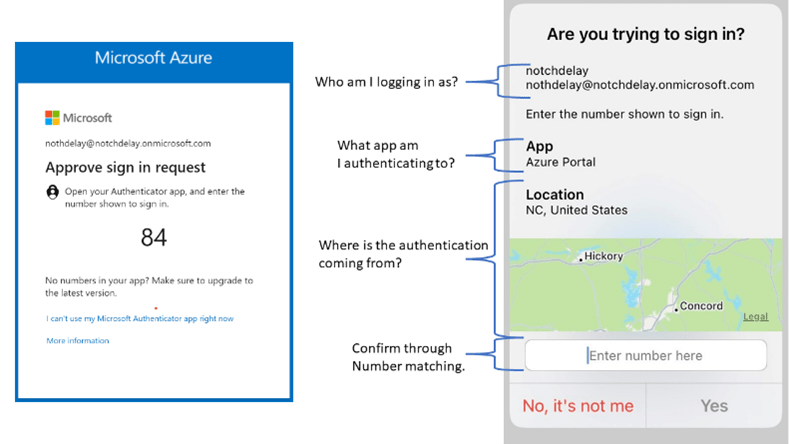
Microsoft Authenticator is an application that installs on your mobile device. Microsoft Authenticator can be used for MFA, as well as for Passwordless sign-in. By default the user will receive a prompt in Microsoft Authenticator when using Passwordless or MFA to click No, it’s not me or Yes. However, there are a number of features that help increase the security of this process. These three security features are: Require number matching for push notifications, and Show geographic location in push and passwordless notifications. Require number matching for push notifications: A user is prompted with a number in their browser, they will then either need to select that number or key in the number to complete the authentication. Show application name in push: This simply displays the application to which they are authenticating. Show geographic location in push and passwordless notifications: This displays the location from which the authentication originated.

SMS

SMS is another authentication method, and it is currently in preview. This allows the user to receive an SMS message. Then the user can login with the code that is sent to their mobile phone. SMS cannot be used for MFA.

Temporary Access Pass

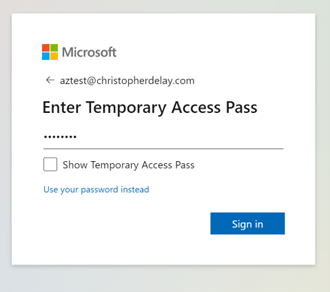
Temporary Access Pass is a self-descriptive feature. TAP allows the administrator to generate a one time pass code that can be used for authenticating to Azure Active Directory. TAP is ideal if you require MFA for a user enrolling their authentication methods. Since a user does not have authentication methods yet registered, they cannot MFA even if this is required. To get through this limitation a user can be given a TAP and use that as their MFA credential. The downside to this feature is there a lot of administrative overhead since sending a TAP must be completed on a user by user bases.

Certificate Based Authentication (Preview)

Certificate Based Authentication (Preview) allows a user to login with a certificate or Smart Card. There are of course some setup steps like importing your Root CA certificate and configuration of the policy. However, this is a nice addition, especially if you would like to leverage your existing smart card infrastructure. I will post a blog entry on setting this up in the near future.

Authentication Strength (Preview)

Authentication Strength (Preview) assigns an authentication strength to different types of authentication. For example, one authentication strength is named Phishing-resistant. In order for an authentication to be considered Phishing-resistant the authentication method must be Windows Hello for Business (WHfB), FIDO2 Security Key, or Certificate based Authentication. You can then use conditional policy to require a certain authentication strength before a user is given access to an application.

Next time

Next time I will probably divert from this intro series to cover Certificate Based Authentication.

Thank You,

-Christopher

Introduction to Azure Active Directory Part 1: AD vs Azure AD

So, it’s important to distinguish Azure AD from on-premises AD. There are few similarities between the two. They are both Identity Providers (IdP). However, they used different protocols, structures, and so on. So, let’s look at some of the differences.

Both Azure AD and AD contain identities such as users, groups, and devices. And each identity has attributes that contain information and characteristics about that identity. So, that is a similarity.

Architecture

On-premises Active Directory is hierarchical. In other words, you have a domain then under the domain you have containers, OUs, and sub-containers, and sub-OUs. Azure Active Directory is a flat structure where everything falls directly underneath the Azure AD “Domain”.

Accessing attributes and data

However, how that information is accessed is very different between the two. For both, you can of course use PowerShell to pull information. Also, both have GUIs that can be utilized. Azure AD has the Azure Portal and AD has the Microsoft Management Consoles.  In Azure AD you also have the option to use the Azure Command Line Interface (CLI), as well. The protocols that are used to access that information are of course different. The most common protocol for on-premises AD is LDAP. Most applications and tools leverage LDAP to some degree to pull information. Azure AD the primary way to access as well as change information is Graph API.

Authentication Protocols

Active Directory leverages Kerberos and NTLM to for authentication.

Whereas Azure Active Directory uses Oauth 2.0 and Open ID Connect. However, you will see SAML used quite a bit, especially for Single Sign On (SSO)

Configuration of Devices

In Active Directory, Group policy is used to configure computers. Many of the settings in Group Policy center around configuring security settings

In Azure Active Directory, Intune is used to manage the configuration of computers and devices.

Users, Groups, and Devices

Users

Synced Users

On-premises Active Directory contains user accounts. However, Azure AD has many types of user accounts. For most organizations the majority of the users are sourced from Active Directory. In other words, users are synced from Active Directory. These are called synced accounts. Keep in mind that on-premise Active Directory is authoritative for these accounts including for the password

Cloud Users

Additionally, users can be created natively in the cloud. These are named cloud users. These users do not exist in the on-premises Active Directory.

Guest Users

Finally, there are also guest users. Azure AD has a feature named B2B. B2B allows users from other Azure AD tenants to be given access to applications in your tenant. So, for example lets imagine a user is from the Contoso organization and his UPN is john@contoso.com. Continusing this example there is another organization named Fabrikam and hosts the Fabrikam.com domain. Fabrikam can invite john to the Fabrikam tenant as a guest account. Then when accessing an application hosted by Fabrikam, John would log in to the Contoso tenant and that authentication would be trusted by Fabrikam, and John could access the application. I will go into much more detail in an upcoming posting.

Groups

Below are the group types available in Azure AD. One nice feature that Azure AD possess is dynamic groups. With dynamic groups the group is built dynamically based on one or multiple attributes of the user or device.

  • Synced Groups: Groups synced from on-premises Active Directory
  • Assigned Group: A cloud group whose membership is assigned.
  • Dynamic Group: A cloud group whose membership is determined by an attribute query.
  • M365 Group: A group used in M365 for collaboration, especially with Office 365 applications
  • M365 Dynamic Group: An M365 group whose membership is dynamically assigned by an attribute query.

Devices

Devices can be added to Azure Active Directory. There are 3 device states that Azure AD supports: Hybrid Azure AD Joined, Azure AD Joined, and Azure AD registered. I will just cover the basic here and save the details for an upcoming posting.

Hybrid Azure AD Joined: This is Windows computer that is joined to both on-premises Active Directory and Azure Active Directory. An Active Directory user or Azure AD user can login to these types of machines.

Azure AD Joined: This is a Windows computer that is joined to Azure Active Directory. Azure AD Users can sign into these devices. Keep in mind an Azure AD User can be a user synced from on-premises Active Directory.

Azure AD Registered: Is a device, usually a phone or tablet that is joined to Azure Active Directory. A local user account is able to login to this device. For example, with an iPhone you effectively login to the phone with your iCloud account and not an Azure AD account.

Administrative Units

In on-premises Active Directory you delegate access to users, groups, and devices by OU. Azure AD is a flat structure, so there are no OUs to delegate access. In Azure AD you delegate access through Administrative Units. In order to accomplish this, you must first create the Administrative Unit. Then you add Users, Devices, or Groups to that AU. Finally, there is a set of roles that have certain rights and permissions over the objects contained in that AU. So, you add the users you would like to delegate access to, to one of those roles.

Conclusion

This concludes Part 1. In Part 2, I will discuss Authentication methods. Keep in mind that this posting was an overview, and I will go into a more detailed explanation once I cover the most common aspects of Azure AD at a high level.

-Chris